
In this updated ContentStudio review, you’ll find everything about ContentStudio social media and content marketing toolkit, such as how to use ContentStudio, features, pros & cons, and even alternatives.
You think it’s good to have ContentStudio for your social media and marketing campaigns, right?
Well, ContentStudio is another social media marketing tool out there……
But, realistically, It is more than just a social media marketing tool.
Today, in this ContentStudio review, you’ll find EVERYTHING about ContentStudio.
If you’re concerned about…
-
Whether you should use ContentStudio for social media campaigns of your business or clients
-
Why you should choose ContentStudio over other popular social media marketing tools like Hootsuite, Buffer, Agorapulse, Plannable, etc.
-
Whether ContentStudio can make a difference to your business if you use it
-
And… Whether ContentStudio is worth it, invest your hard-earned money and precious time.
Then, you’re going to find answers for all of these and more questions you may have in your mind in this ultimate tutorial and review on ContentStudio.

How to Read this ContentStudio Review + Tutorial
Like most of my other articles in Pitiya, this post about on ContentStudio review is also lengthier. However, it contains over twenty sub-headings that cover each inch of ContentStudio.
I did my best to put it together as far as possible so you can access them in one place. Because of that, this article contains over 7,000 words. (Have you ever read a post that lengthier?)
Therefore, I put essential sections into the Table of Contents below. Click on each heading and subheading text to jump to each section of this ContentStudio Review + Tutorial.
ContentStudio Review
ContentStudio has seven main tools. They are,
- Content Discovery
- Composer
- Planner
- Automation
- Analytics
- Inbox
- Influencer search
I will discuss each of them in this ContentStudio.io review.
Workspaces
ContentStudio is a versatile social media and content marketing toolkit. It provides many features and tools to help you manage your social accounts. Hence, you might wonder how to manage multiple brands and certain groups of social accounts.
ContentStudio’s Workspaces allow you to manage multiple brands more efficiently without confusion.
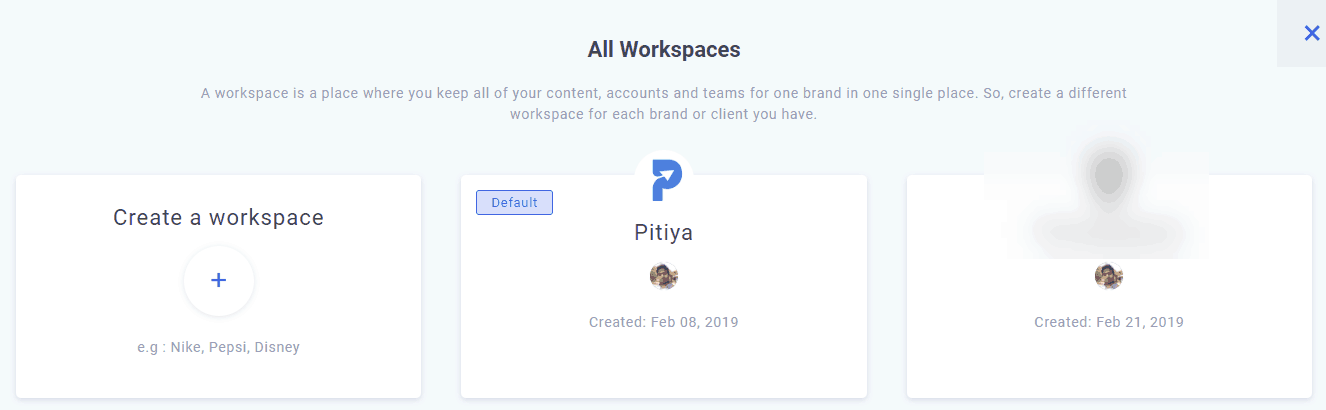
Create workspaces for your brand and businesses separately so you can manage them better and work efficiently without headaches.
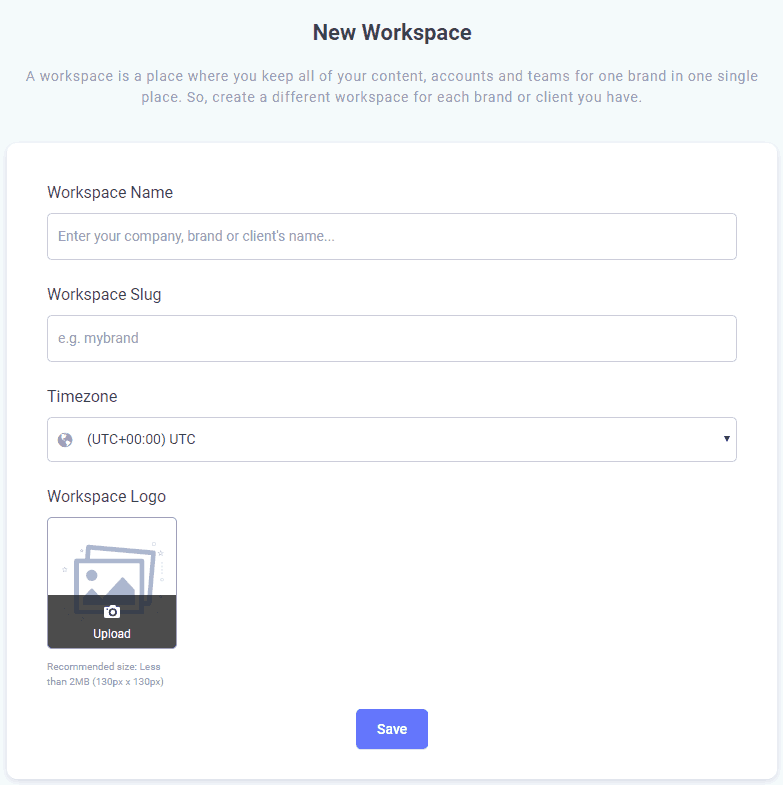
For example, I created a Workspace for Pitiya and managed all social accounts and sites related to the Pitiya brand in that Workspace.
Content Discovery
I’d say the “Content Discovery” tool in Content Studio is the heart of it. It’s where you will find relevant content to share on your social media profiles and blogs.
Content Discovery tool is kind of similar to “Buzzsumo,” but with better integrations and features such as posting to the blog, adding to evergreen campaigns, etc.
You will get access to Content Discovery without having to set up anything. However, if you want to add custom websites to “Content Discovery” in ContentStudio, you must specify the sites.
Sources
Here’s how to add custom sources to ContentStudio.
Step 1. Click on your “Profile” image in the top right corner and select “Sources.”

Step 2. ContentStudio sources library includes millions of sites and RSS feeds. If you wish to add a new source to your custom topics library, click on the “Add a new source” button at the top. Then you will see a popup window like this.

Add New Web Source
You can manually specify a web source in three different ways.
- Add by Keyword/Domain
- Add by RSS Feed URL
- Add by uploading your OPML/TEXT file
Before adding a website feed URL, you can use the “search by keyword” search feature to first confirm that the particular blog you want to add to your Content Discovery feed isn’t already attached.
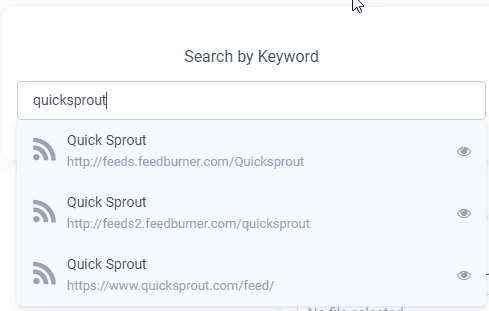
You can preview the blog feed by clicking on the “eye” icon if it’s already been added.

Add RSS Feed
The best way to ensure ContentStudio will catch up with all the past and future blog content is by adding its RSS feed URL.
RSS is an acronym for Really Simple Syndication. RSS is a web content syndication format. Therefore it doesn’t follow search engine robot rules such as index tags.
This way, ContentStudio won’t miss any future blog posts as, in general, the RSS feed is updated whenever the blog is updated, even though it’s set as “Noindex” for search engine bots. Learn more about the specification on RSS 2.0 over at the Harvard Cyber website.
How to find the RSS Feed URL of a blog
According to CMS Usage statistics, most blogs in the world are powered by WordPress (self-hosted), BlogSpot, Tumblr, WordPress (hosted), or Magento content management systems. (among them, self-hosted WordPress is far ahead of others. So, most websites and blogs you see are created using WordPress) Here are example RSS feed links for each blogging platform.
| Content Management System | RSS Feed Path Address |
|---|---|
| WordPress | /feed/ |
| BlogSpot | /feeds/posts/default |
| Tumblr | /rss |
| Magento | /feed |
| Live Journal | /data/rss |
| Joomla | /feed |
| Drupal | /rss.xml |
| Typepad | http://feeds.feedblitz.com/*yourusername* |
Despite Typepad, enter blog address before RSS feed path address to generate RSS feed of posts. Ex: www.pitiya.com/feed/ (WordPress Self-hosted)
OPML/TEXT file
OPML is the acronym for “Outline Processor Markup Language.” Mainly it contains a set of RSS feed URLs.
Download the OPML editor to your computer over here and create an OPML/Text file with a set of RSS feed URLs for ContentStudio.
Additionally, you can use this online OPML generator to create OPML files or .XML files.

Here’s what the XML file will look like after hitting the “Generate” button.

Source Library
Source Library is where you will see all available web sources that fetch content for the Discovery feature.
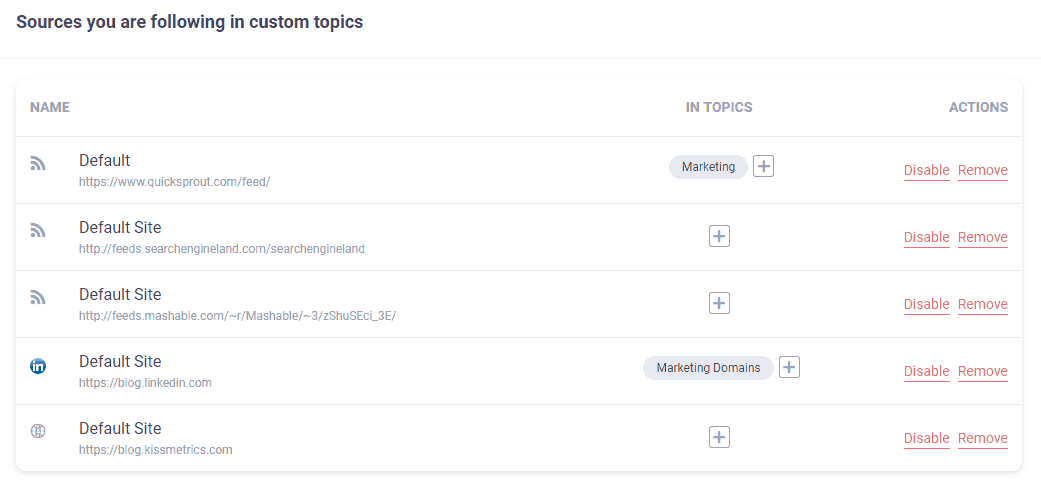
As you see, I have added LinkedIn domains to a custom topic (‘Marketing Domains’). You can turn on/off each source by enabling and disabling it, adding blogs to custom topics, and finding blocked sources!
Search Content
ContentStudio frequently searches for fresh content and categorizes them accordingly to the topics and niches. You can even follow those topics to get insider updates quickly on your industry.
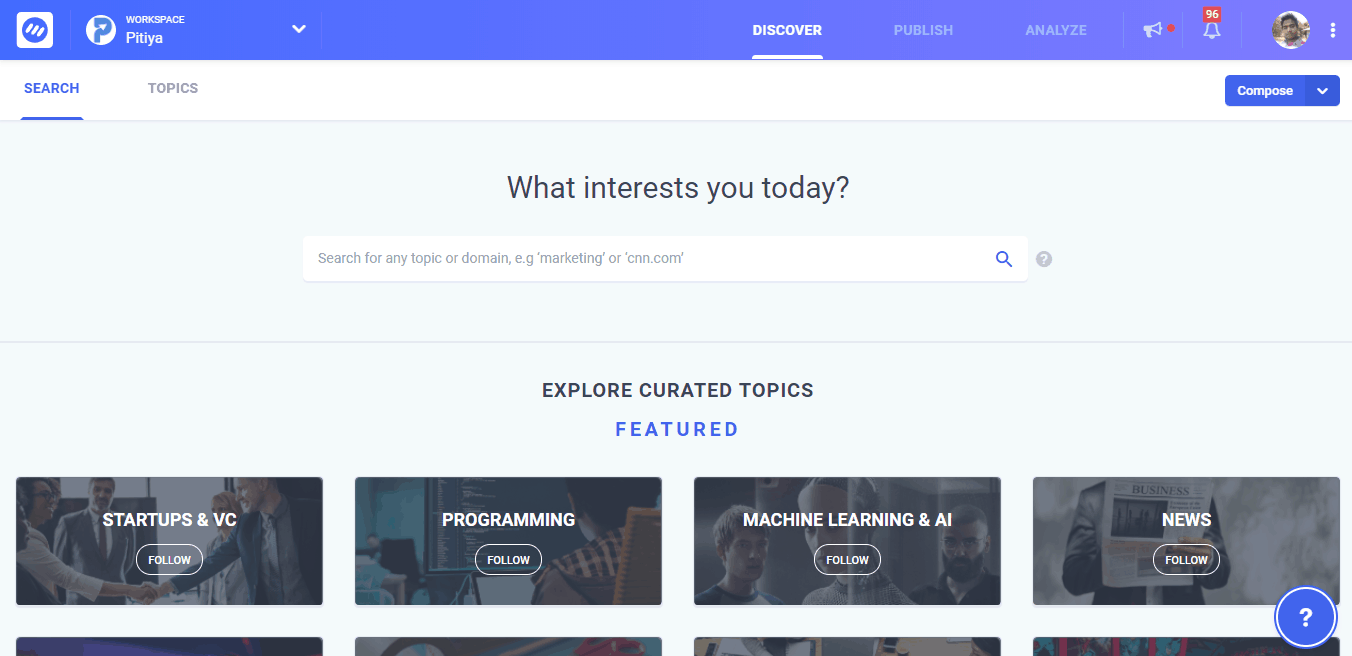
Topics
Remember we set up custom sources earlier?
In this section, you can find not only curated content but also trending content as well!
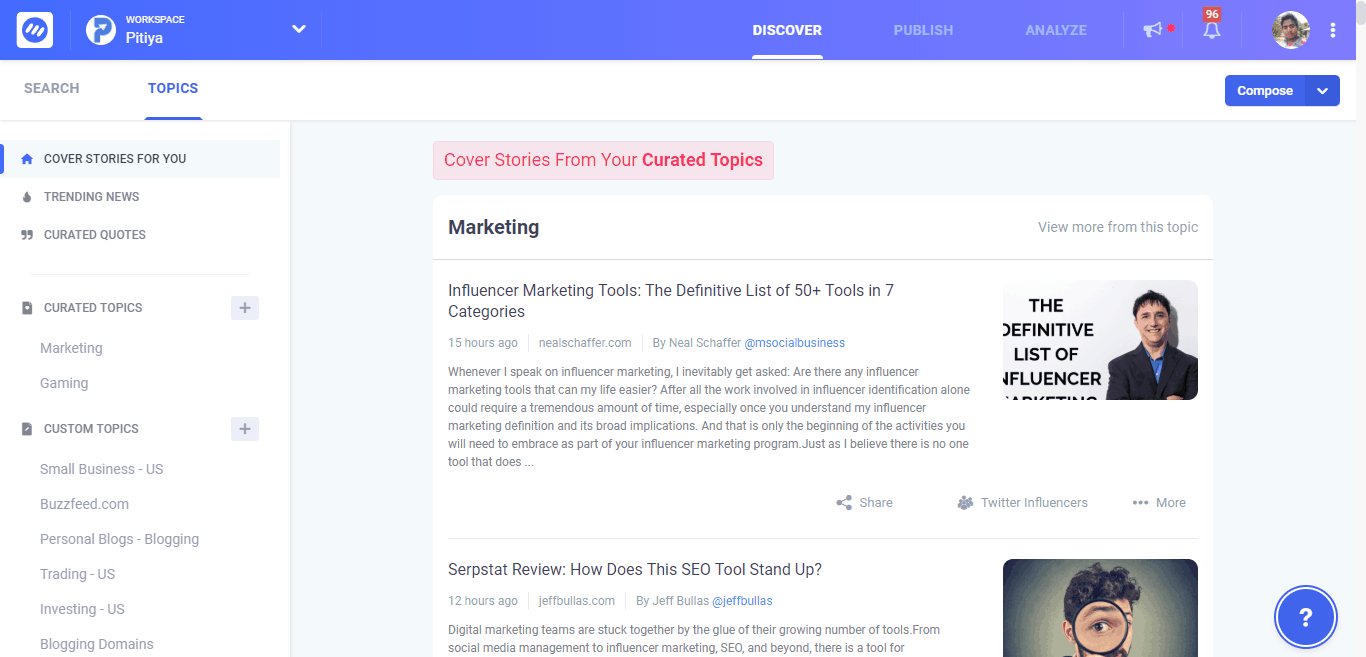
Content Types
One area where ContentStudio’s Discovery feature is ahead of most other content discovery tools is the number of platforms it supports. Here are the platforms that ContentStudio supports.
- Web Articles (News websites, blogs, etc.)
- YouTube
- Dailymotion
- Flickr
- Imgur
- Giphy
- Pixabay
Filter Options
You may want to know which sorts of news have become popular in Canada in the Spanish language last hour.
You can find them very quickly if you use ContentStudio’s Discovery module.

Find Facebook posts related Software industry with high engagement in the last seven days.
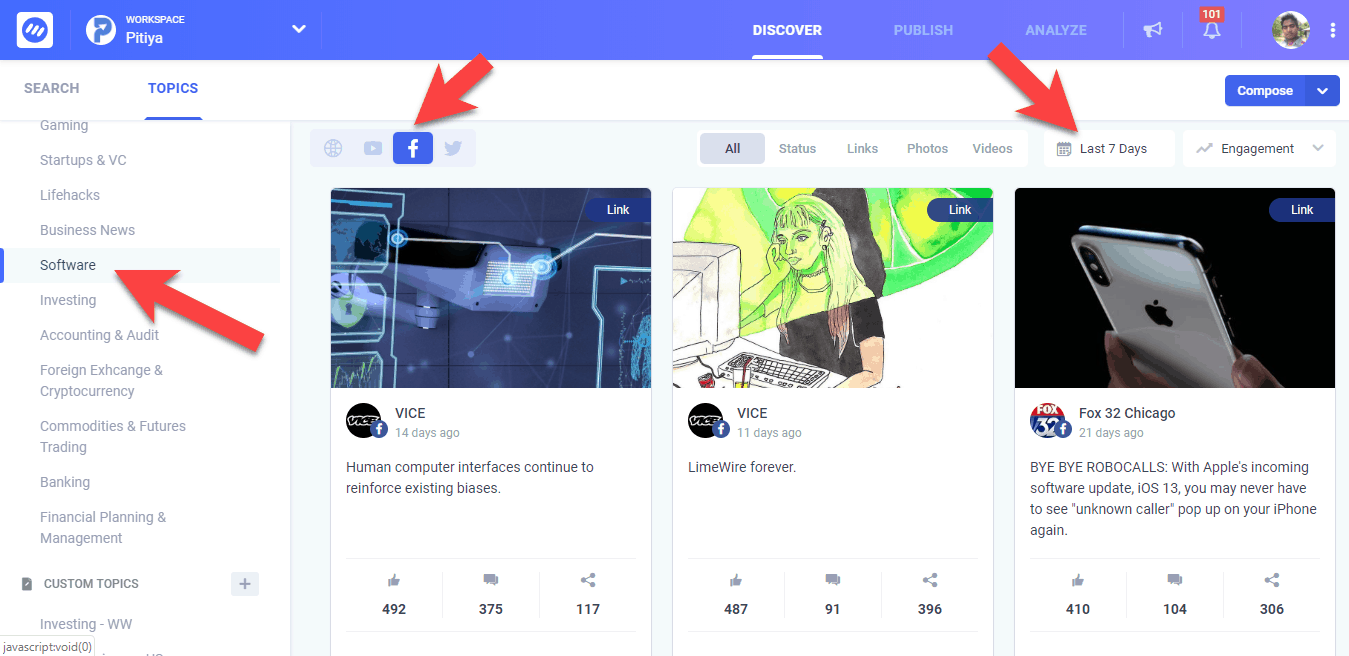
Search Content
You can find certain content by using the search box. Here are the advanced search filters.
- Search by a keyword: marketing
- Search by a phrase: content marketing
- Search by site: techcrunch.com
- Search by author: author: Sarah Perez
- Search by the author in a site: author: Sarah Perez && site:techcrunch.com
Also, you can search keywords within Title only or title and body. The second option will take more time but fetch more content.
Related Content
ContentStudio search box has “auto-suggest” feature. This means you will be suggested related keywords and websites whenever you start typing a keyword.

Details and Actions
View Options
There are two ways to view content on ContentStudio.
- List View
- Grid View
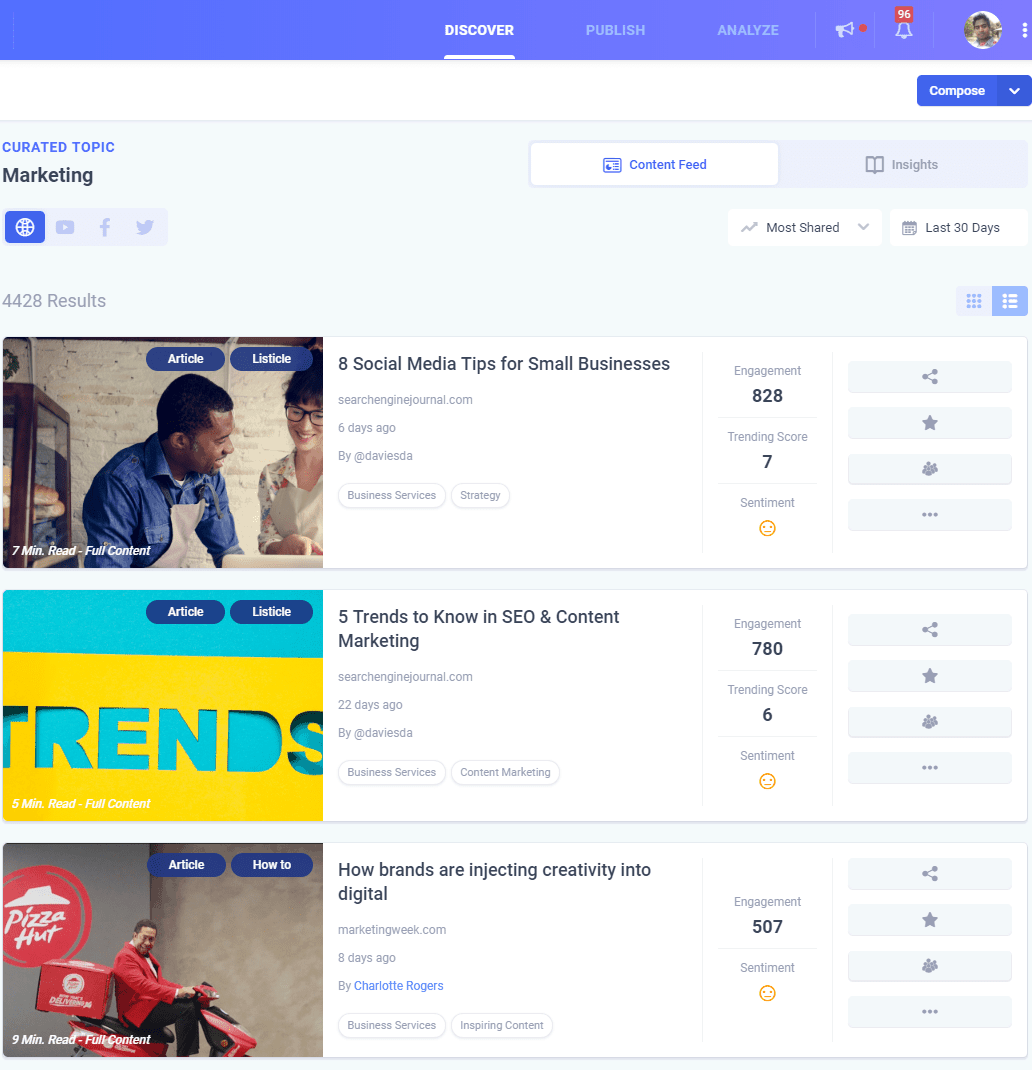
Article Details
Under each web article, you will see details such as the number of total social media shares on Facebook, Pinterest, and LinkedIn and Trending Score, which is built on some factors.

Preview Article
By clicking on the “Eye” icon, you can preview the article inside ContentStudio.

Click “View Original Article” to open the original article in a new tab.
Twitter Influencers
Another convenient feature in the ContentStudio Discovery module is the ability to find Twitter Influencers.
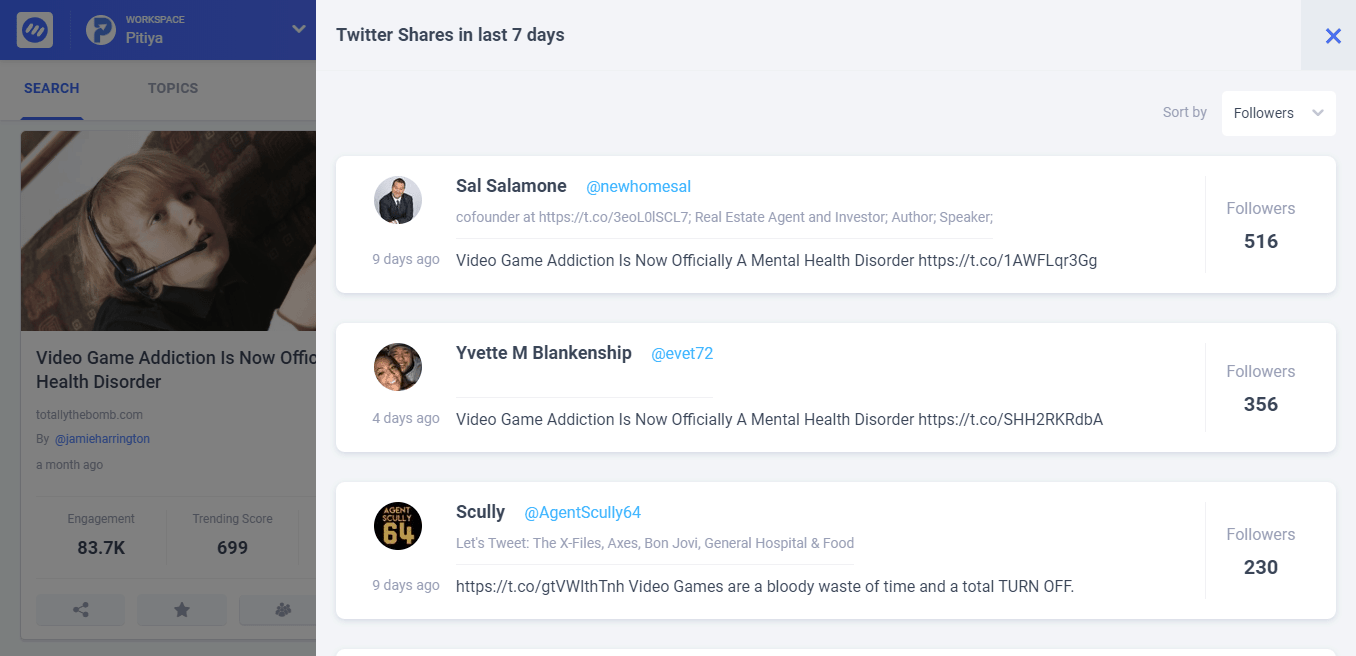
These are Twitter users who are interested in the particular content. You can reach them to pitch your content to get your piece of material shared with their followers. I have already discussed these methods in this article about Twitter tools. Check ContentStudio and Ninja Outreach sections to find out how to implement this.
Domain Options
If you’d like to see more content from a particular domain, click on the yellow three dots and then click on the “All Articles” option.

Or you can block the particular domain globally. You can see blocked sources under Sources >> Source Library >> Blocked Sources.
Add to Favorites
Sometimes you may encounter content you want to read or curate later. Simply create a new Folder under the “Favorites” tab and content to favorites.

Save to Pocket
You can also save web articles and videos to your Pocket account.
Share Articles
Before you start sharing articles on your social media pages/profiles and/or blogs, you must connect them to ContentStudio.
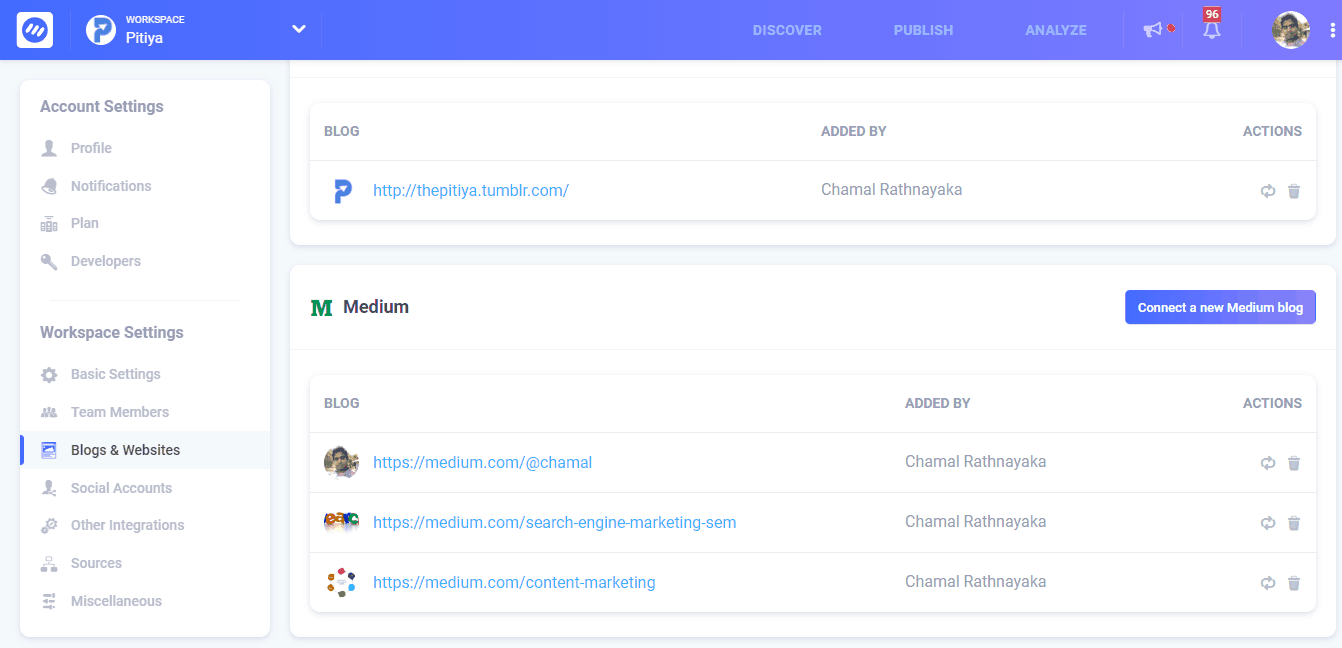
Currently, Facebook, Twitter, Pinterest, LinkedIn, Tumblr social networks, WordPress, Tumblr, and Medium blogging platforms are supported.
You can authenticate your social profiles/pages by navigating to Settings >> Social Accounts.

Note: You can manage unlimited Pinterest boards on each Pinterest account. (each Pinterest board doesn’t count as a social profile)
You can change the “Queue Time” and times posts in the queue are planned to be shared.
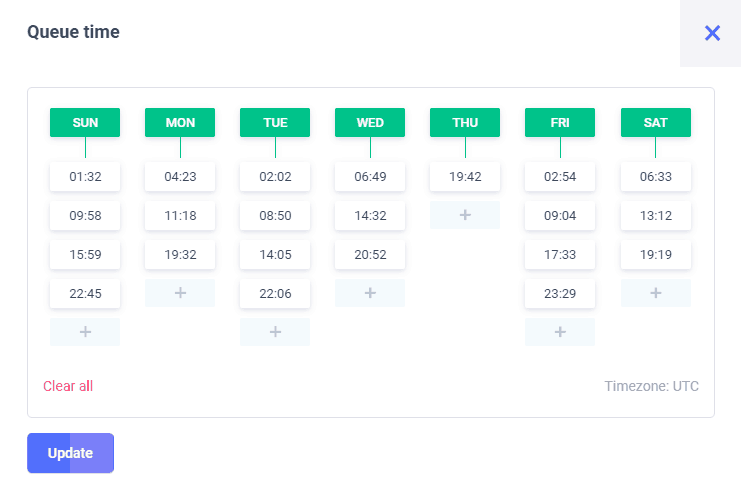
By default, ContentStudio adds optimal times to share content on your social accounts. However, you can add or remove each spot as you want. Similarly, you can connect your blogs to publish content.
Share Articles on Social Media

Once you have connected your social profiles and pages, you can start sharing content on the Trending section of Content Discovery.

As you see in the above screenshot, there are four sharing options. If you selected “Queue,” which is set by default, your content would be moved to the content planner, and after that, it will be published according to the timing in Queue.
Evergreen Queue is a pool of content where each content will be shared again after other content has been shared. I will talk about it a bit more in the Automation section.
ContentStudio, by default, shortens your links so that it can analyze performance. In addition to default URL shortening, you can connect other link shorteners and set not to shorten URLs if you would like to.
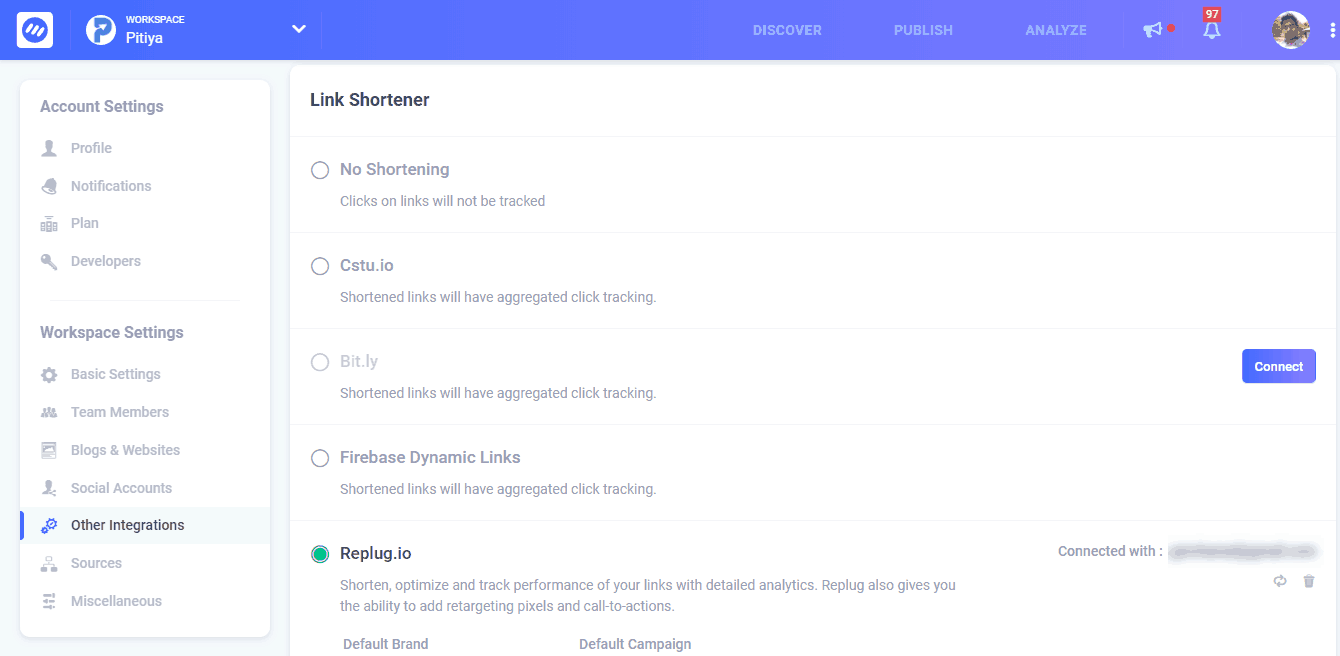
Another feature that I guess most people would find important is embedding UTM tracking in links.
You can create a UTM Preset in “UTM Tracking” under Miscellaneous.
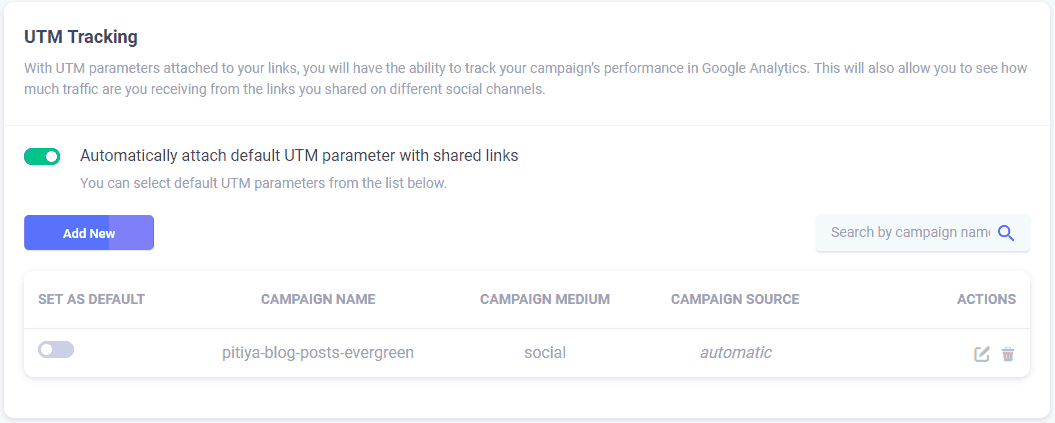
Even if you’re sharing other people’s content, add UTM tracking to links because it will help the webmaster, and you will get attention.
Saved Hashtags
Another beneficial feature is “Saved Hashtags.” Adding relevant, popular hashtags to your posts will increase organic reach and get more likes, retweets, and traffic to your website.
ContentStudio lets you easily add relevant hashtags for your social media posts. One key benefit here is that you can easily categorize a set of relevant popular hashtags and add them instantly to your social posts. You will save time and make your social posts, particularly Tweets, appealing and address the target market.

Once you are in the social post editor, you can easily use the saved hashtags.

Add images, videos and emojis are other optional settings in the ContentStudio post editor. I’d suggest utilizing Emojis well to increase engagements.
Publish Articles on your blog
This is kind of a similar feature to “reblog” on Tumblr. Even though Reblogs are essential to increase traffic and followers on Tumblr, publishing other’s content on your website or blog isn’t recommended as it could damage your SEO performance due to duplicate content issues. Learn more about Google Panda to examine more about duplicate content and SEO

However, it won’t make a big difference if your blog is built on a platform like Medium or Tumblr.
I will talk about this feature in the Content Curation section.
Note: Content curation and content duplication are two different topics.
Curated Topics (Default)
Currently, there are twelve default curated topic categories.
- Featured
- News
- Arts & Entertainment
- Technology
- Beauty & Fitness
- Health Conditions
- Travel
- Finance
- Science
- People & Society
- DIY & Home Improvement
- Food & Drink
Each main topic category contains multiple sub-topics so that you can easily narrow down targeting and find the most popular content.
Custom Topics
If you want something specific to be organized in your ContentStudio Content Discovery dashboard, creating “custom topics” is the best way.
Here are a few custom topics I’ve created for my reading and content publishing.
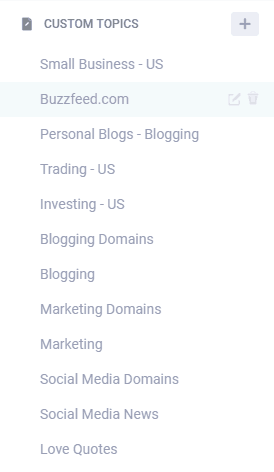
For example, I have created a custom topic to filter content related to ‘Blogging‘ of specific websites I would like to read. So, I don’t want to visit each website one by one and filter blog posts by the ‘Blogging’ category.

Create Custom Topics
Here’s by step guide to creating a new custom topic in ContentStudio.
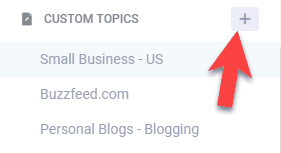
Step 1. Click on the “+” icon in Discovery.
Step 2. Give a name for your new custom topic. It should be short and resonate with what the custom topic is about. Ex: Fitness Blogs – My Competitors, US Politics, Olympic News – En_US
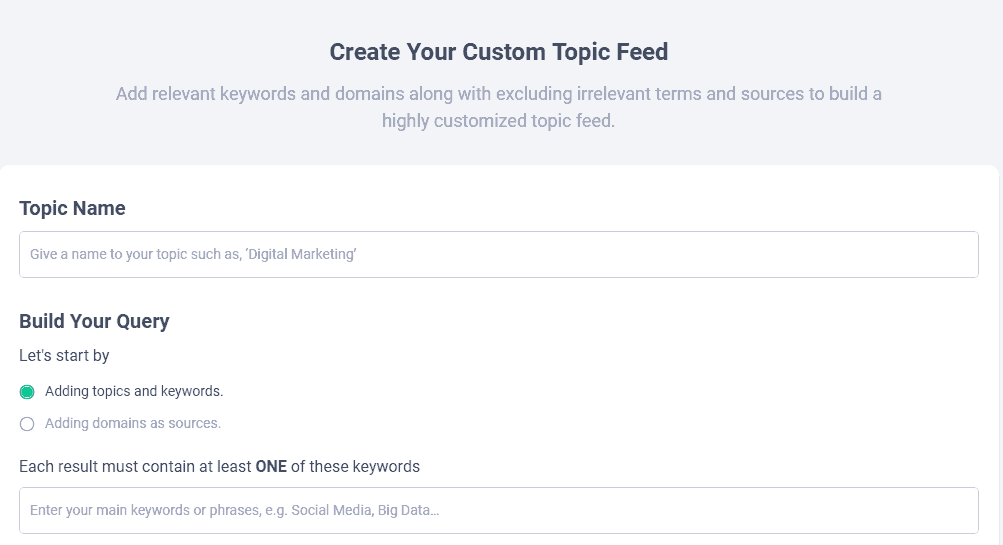
Step 3. Build your custom topic according to your needs. Use Exclude fields to filter out any irrelevant, low-quality content. For example, add blogspot.com into the ‘Exclude domains’ field if you wish to block content from BlogSpot blogs.
Here’s an example custom topic that will filter trending content related to Investing, the stock market, etc.
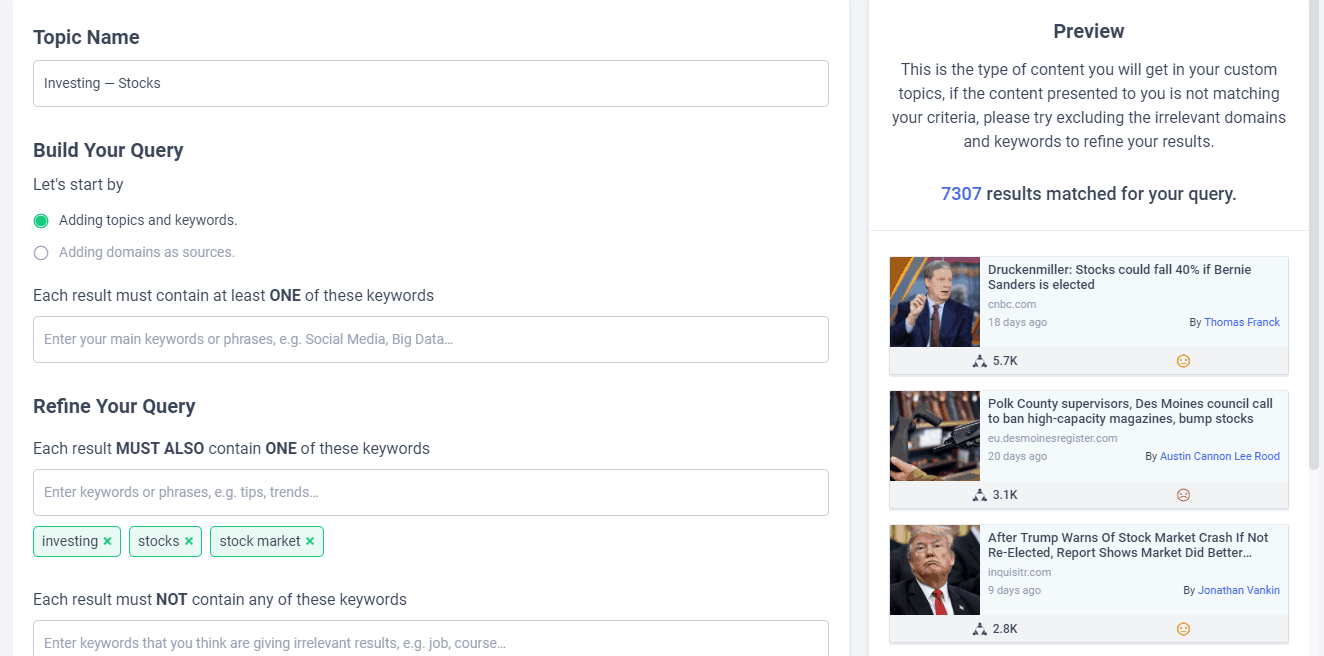
Narrow your targeting by using content filter options.

Feedly Contents to Custom Topics
If you use Feedly to save content you find over the Internet and organize your reading list, you can import them to your ContentStudio account and create custom topics based on them.
However, you must have a paid subscription to share content from Feedly to ContentStudio.
Composer
I have mentioned ContentStudio as an all-in-one content marketing tool. Well, the Composer in ContetStudio proves my point very fine.
If you’re a social media marketer, manager, or blogger, you’d like to manage all your social media pages on one page. (ex: sharing pictures, quotes, GIFs, videos, and links to articles you have published earlier to all pages at once.)
ContentStudio’s Composer is the most robust social media posting tool I have ever seen. Combining with Content Discovery makes sharing even more comfortable and quicker.
If you’re a blogger and have tons of other niche websites and want a way to find and publish rele